Find your symptom
Show all paths
- What happens? A message or error appears → Which system? macOS → macOS: Not Opened, damaged, or Java SE 6
- What happens? A message or error appears → Which system? Windows → Windows: SmartScreen, wrong file, jar problems
- What happens? A message or error appears → Which system? Linux → Linux: blank window, old version, install errors
- What happens? A message or error appears → Which system? I started the .jar in a terminal → Java errors with the .jar
- What happens? Nothing happens, or it closes at once → Which system? macOS → macOS: Not Opened, damaged, or Java SE 6
- What happens? Nothing happens, or it closes at once → Which system? Windows → Windows: SmartScreen, wrong file, jar problems
- What happens? Nothing happens, or it closes at once → Which system? Linux → Linux: blank window, old version, install errors
- What happens? It opens, but everything is grey → Grey wires right after opening
- What happens? It opens, but my file will not open → Logisim opens but your file does not
Wrong clock or a circuit that does not simulate is a different problem: see clock and simulation.
macOS
“Logisim-evolution” Not Opened (or “damaged” on older macOS)
Fix: the dialog has no Open button. Click Done. Then open System Settings, Privacy & Security and click Open Anyway, or remove the download flag in Terminal:
xattr -dr com.apple.quarantine /Applications/Logisim-evolution.app
“Logisim-evolution” Not Opened. Apple could not verify “Logisim-evolution” is free of malware that may harm your Mac or compromise your privacy.macOS 15, buttons Done and Move to Trash (F64).
A macOS dialog with a yellow warning triangle titled "Logisim-evolution" Not Opened. The text says Apple could not verify it is free of malware that may harm your Mac or compromise your privacy. The only buttons are Done and Move to Trash.
Both override steps come from Apple’s documentation, not from our tests; we confirmed only that the app is not notarized (F29) and that the flag can be removed. On older macOS, users report “is damaged and can’t be opened. You should move it to the Trash.” and “cannot be opened because Apple cannot check it for malicious software.” The fix is the same. Full guide: install on a Mac.
“To open Logisim you need to install the legacy Java SE 6 runtime”
Users report this from the old classic 2.7.1 Mac app. Do not install Java SE 6. Run the generic jar with Java 21 instead, which opened the classic window on our macOS 15 test machine (F64). See classic Logisim 2.7.1.
brew install fails
The Homebrew cask was disabled on 2026-09-01 and points to 4.1.0 (F31). Use the DMG: install on a Mac.
Stuck on the splash screen “Loading file…”
When you open an old classic-format file, a hidden “Old file format – compatibility mode” dialog can sit behind the splash screen. On our macOS 15 test, pressing Return dismissed it and the window appeared (F35, F02). Open Logisim first, then use File, Open (⌘O).
A jar cannot see my Desktop or Documents files
Users report this when a jar is started by double-click. Start it from Terminal instead. We did not test it.
Windows
“Windows protected your PC”
Fix: click More info, check the file name, then Run anyway. The installer is not digitally signed (F25). To avoid the prompt, install with winget, which checks the file’s hash for you (F56):
winget install --id logisim-evolution.logisim-evolution -e
See install on Windows.
“This app can’t run on your PC”
Users report this when the file does not match the PC: a 32-bit Windows, or the wrong architecture. There is no 32-bit build of 5.0.0. Get the MSI that matches your processor: which file do you need.
Double-clicking the jar does nothing, or it opens in WinRAR or 7-Zip
Use the MSI instead. Or right-click the jar, choose Open with, and pick Java. Or run java -jar from Command Prompt. See the Java page.
Installed with Chocolatey or Scoop and nothing starts
These packages install the jar, so you need Java 21. Chocolatey says so itself (F57):
Note: Java needs to be installed before using Logisim Evolution.Printed by Chocolatey after the install (F57).
Install Java 21 (the Java page) or switch to winget or the MSI.
It starts, then closes or crashes
Reset the preferences. Start with --clear-prefs, or delete the registry key HKCU\Software\JavaSoft\Prefs\com\cburch\logisim (F26). If it still closes, start the launcher from Command Prompt to see the error, then look it up in the error list.
Tiny or blurry window
This is a screen-scaling problem. We did not test physical high-resolution screens. In our Linux test the Java option -Dsun.java2d.uiScale=2 doubled the interface but not the circuit canvas (F71); use the zoom buttons for the canvas.
Linux
Blank white or grey window
Users report an empty window on tiling window managers and some Wayland setups. The project’s README suggests starting with this variable (upstream advice, not tested by us):
_JAVA_AWT_WM_NONREPARENTING=1 logisim-evolution
“Assistive Technology not found”
java.awt.AWTError: Assistive Technology not found: org.GNOME.Accessibility.AtkWrapperClassic 2.7.1 on Ubuntu's Java 8 (F21).
Use a newer Java, or start with -Djavax.accessibility.assistive_technologies=" " (F21). See the Java page.
It is an old version
You installed the distribution package logisim, which is classic 2.7.1 (F22), or the Snap, which is 3.8.0 (F34, F53). Fedora has no logisim package at all (F54). Use the official .deb or .rpm: install on Linux.
The Snap prints “symbol lookup error”
The 3.8.0 Snap prints a GTK error line ending in “undefined symbol: pango_font_family_get_face” when it starts. It still runs, but it is two major versions behind (F53). Remove it and use the .deb or Flatpak.
AUR install fails with “unzip: command not found”
Install unzip first, then build again. It then builds and runs (F55, F60).
The Flatpak cannot see my file
It only reads and writes your home folder (F52). Move the file there.
“HeadlessException” over SSH, WSL or on a server
Use a desktop session, X forwarding, or xvfb-run. The --tty options work without a display (F18).
Any system: Java errors when running the .jar
If you see A JNI error has occurred, UnsupportedClassVersionError ... class file version 65.0, or LinkageError occurred while loading main class, your Java is older than 21 (F20). The fix is the installer, or Java 21: the Java page. If you see “Invalid or corrupt jarfile” (a community report), the download is incomplete or was saved as a web page. Download it again from the download page and compare the size.
It opens, but my file will not open
- Classic 2.7.1 cannot open a file saved by 5.0.0. It stops with “File Error … The built-in library FPArithmetic is not available” (F04).
- 5.0.0 opening an old file shows “Old file format – compatibility mode”. That is a warning: click OK (F02).
- A download that has a
.circname but is something else can also fail. See the .circ file page.
It opens, but everything is grey
Fix: click once on an empty part of the canvas, or press Ctrl+R (⌘R on a Mac, Simulate, Reset Simulation). In 5.0.0 a freshly opened circuit shows grey wires and 0 on its pins until the first click or reset, and moving the mouse does not help. It happens with files saved by 5.0.0 itself, not only old ones (F45 in the Linux lab, F49 on a Windows desktop, F64 on macOS, F03 for classic files).
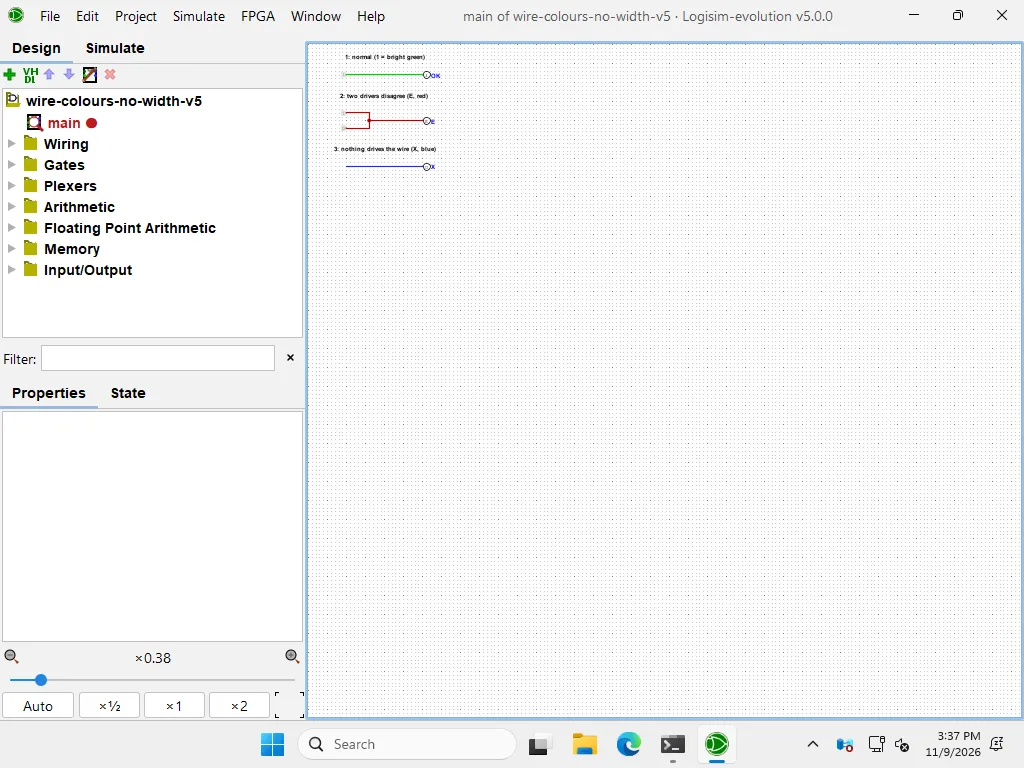
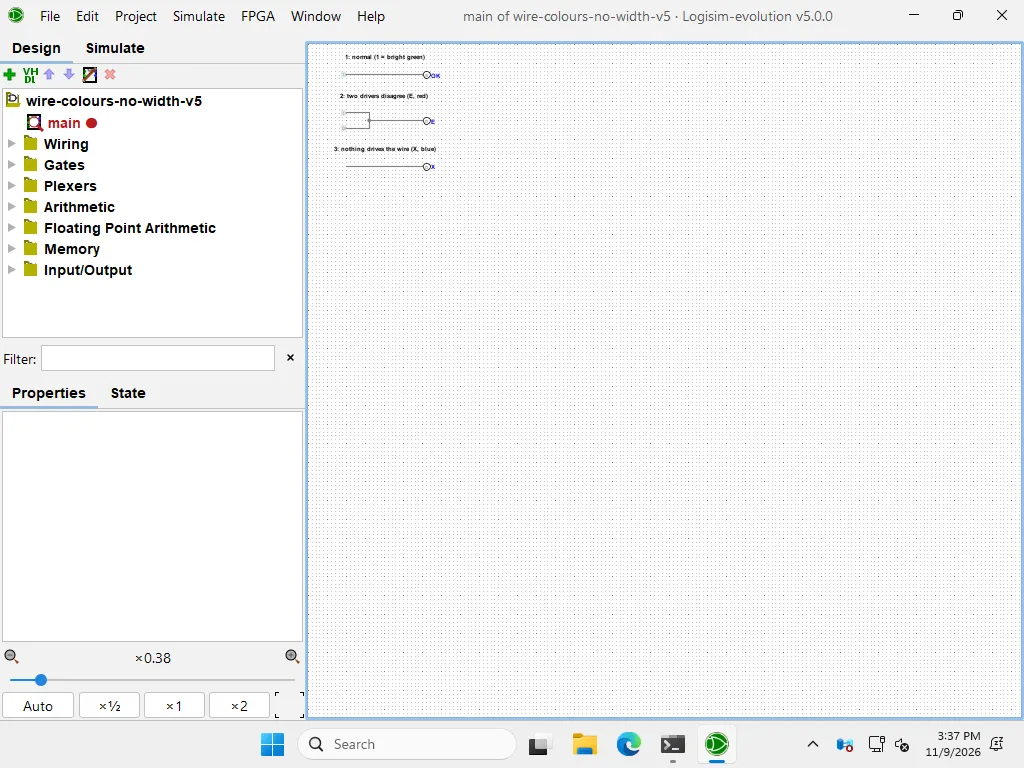
If the colours appear and some wires are red, blue or orange, that is a real circuit problem: see wire colours.
Still stuck? Collect this before asking for help
Ask your course forum or teaching assistant first, then the project’s GitHub issues with the list above.