Which file do you need?
Download for Windows
Runs in your browser. Nothing is uploaded.
How do I check?
Windows: Settings, System, About, System type.
Download Logisim-evolution 5.0.0 for Windows (x64)
Released 2026-09-12, the latest release we checked on 2026-11-09.
Official file from GitHub (the Logisim-evolution project). logisim.dev does not host Logisim.
a6eb97f814bb4ca0f083efe3e44081af94fe528b5c480bcc8380b4e741bb9b65Get-FileHash .\file -Algorithm SHA256 (PowerShell), shasum -a 256 file (macOS) or sha256sum file (Linux). The result must match exactly.JavaNo Java needed: this installer includes its own Java runtime (Microsoft OpenJDK 21.0.4).
Windows may show "Windows protected your PC" because the installer is not digitally signed. Click More info, then Run anyway. (F25)
About 125 to 146 MB on disk after installing (F36).
Other ways to install on Windows
- workswinget: 5.0.0: winget checks the installer hash for you ("Successfully verified installer hash"). Installed in 10.2 s on our test machine. Listing
- partialChocolatey: 5.0.0: This installs the .jar, not the installer. Install Java 21 first, or use winget or the MSI, which include Java. Chocolatey prints "Java needs to be installed before using Logisim Evolution". Listing
- partialScoop (extras bucket): 5.0.0: This installs the .jar. Scoop suggests java/openjdk; you need Java 21. Listing
If you would rather skip the tool, this is the whole decision:
| Your computer | Download |
|---|---|
| Intel or AMD PC (most laptops) | logisim-evolution-5.0.0-amd64.msi |
| Windows on ARM (Snapdragon, Surface Pro X) | logisim-evolution-5.0.0-aarch64.msi |
| No admin rights, or you want to carry it on a USB stick | logisim-evolution-5.0.0-windows-amd64.zip (or windows-aarch64.zip) |
How to check if your PC is x64 or ARM
Open Settings, then System, then About. The line “System type” says “x64-based processor” or “ARM-based processor”. (This wording comes from Microsoft’s documentation; we did not capture the screen.)
32-bit Windows
There is no 32-bit build of Logisim-evolution 5.0.0: the release has no such file (F24). Use classic Logisim 2.7.1 with a 32-bit Java, or another computer. See classic Logisim 2.7.1 today.
Install with the MSI (recommended)
Download from GitHub
Open the v5.0.0 release page, scroll to Assets and click the MSI for your computer. Your browser may say the file is not commonly downloaded; choose to keep it.
Check: A file named logisim-evolution-5.0.0-amd64.msi (79.1 MB) is in your Downloads folder.
Open the MSI and allow the warning
Double-click the file. Windows may show a blue box: “Windows protected your PC”. That is Windows SmartScreen, and it appears because the installer is not digitally signed (Authenticode status: not signed, F25). Click More info, check that the file name is the one you downloaded, then click Run anyway.
Check: The installer window opens.
Finish the wizard
Accept the defaults. If Windows asks “Do you want to allow this app to make changes”, choose Yes. The installer copies the program to
C:\Program Files\logisim-evolution\. On our Windows Server 2025 test machine a silent install took 4.2 seconds and used 128.0 MB (125.0 MB for the ARM64 version), and it created a Start menu entry and the.circfile association (F25).Check: The installer says it is complete.
Start Logisim from the Start menu
Search the Start menu for “logisim-evolution” and open it. On our test machines the window was on screen a few seconds later (F35).
Check: A window titled with Logisim-evolution v5.0.0 appears.
Open a circuit and click the canvas
Open any
.circfile. At first the wires and pins are grey and show 0, and moving the mouse over the canvas changes nothing. Click once on an empty part of the canvas, or press Ctrl+R, and the colours appear. We measured this on the Windows Server 2025 desktop with the official MSI (F49).Check: The wires change from grey to green, red or blue after one click.
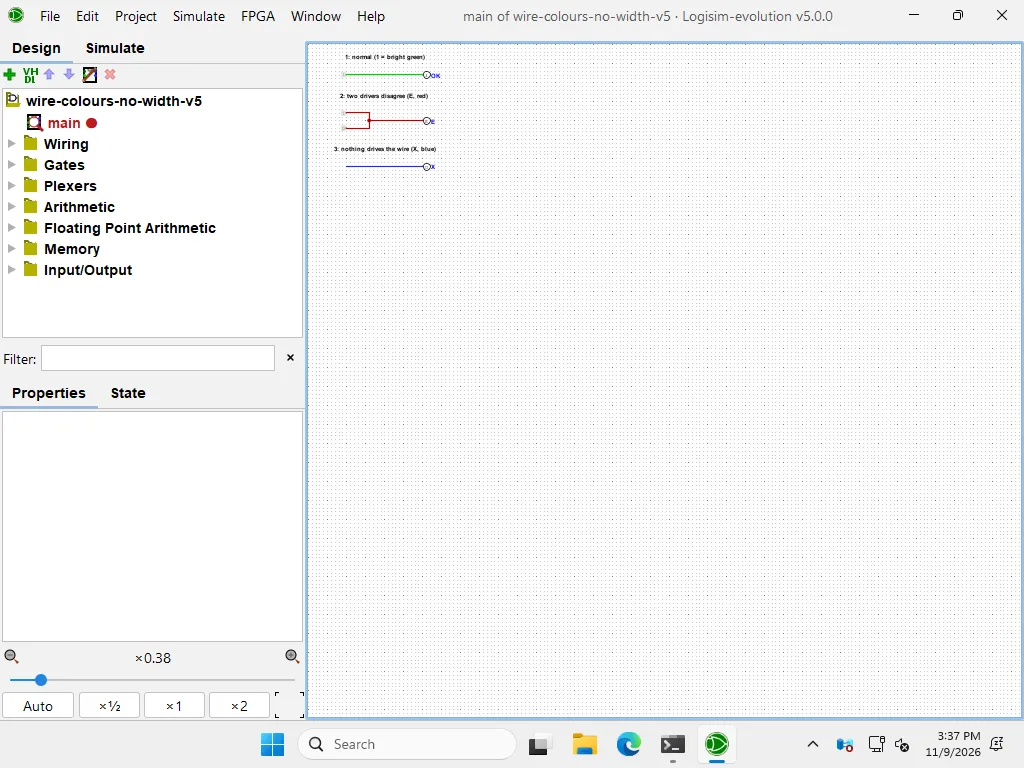
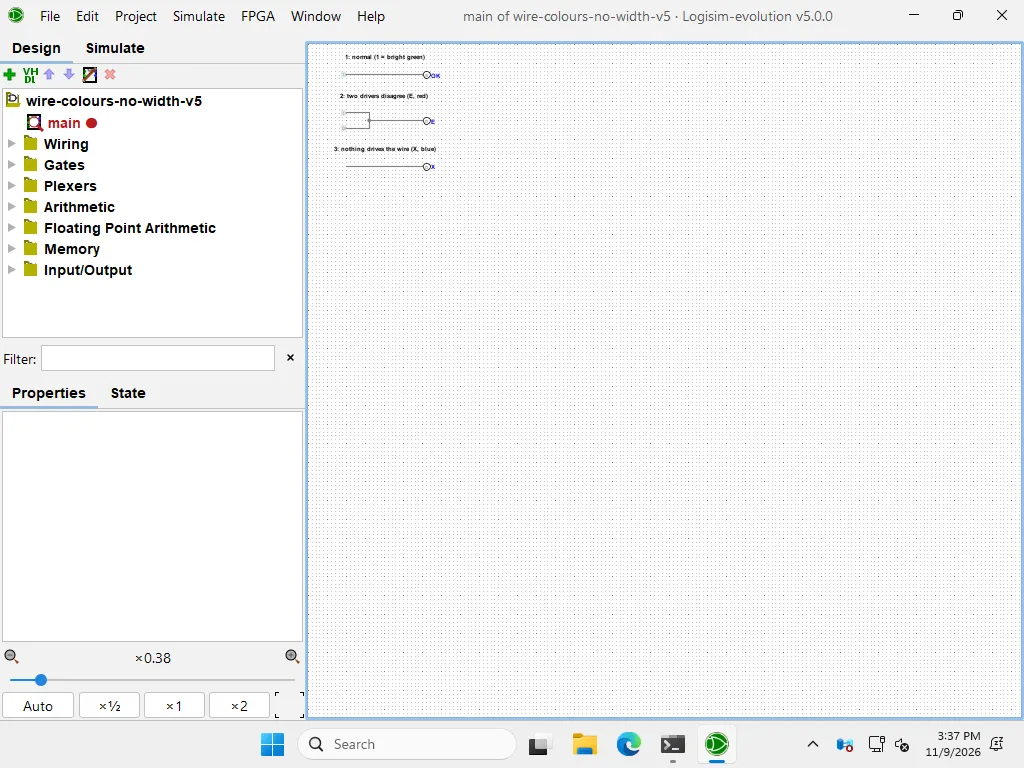
Where do the colours come from, and what do red and blue mean? See wire colours.
No admin rights: the portable zip
Download logisim-evolution-5.0.0-windows-amd64.zip (77.4 MB) or the ARM64 zip. Right-click the file, choose Extract All, and run logisim-evolution.exe from the extracted folder. Do not run it from inside the zip.
We extracted and hashed the zip files but did not run them on a Windows desktop, so the details below are not verified by us: the portable version does not create a Start menu entry or the .circ file association, so open files with File, Open or drag them into the window. Preferences are stored in the registry key HKCU\Software\JavaSoft\Prefs\com\cburch\logisim, as with the MSI (F26). A security warning on the .exe is possible.
- ▸ C:\Program Files\logisim-evolution\
- logisim-evolution.exe← the launcher (F28)
- runtime\← Logisim's own Java (F27)
Install with winget, Chocolatey or Scoop
One difference matters: winget installs the same MSI, with Java. Chocolatey and Scoop install the .jar, so they need Java 21 (F56, F57). These packages are maintained by third parties.
winget (recommended package manager). It downloads the official x64 MSI from GitHub, prints “Successfully verified installer hash” and installed in about 10 seconds on our test machine (F56):
winget install --id logisim-evolution.logisim-evolution -e
Chocolatey installs the jar, checks its hash and adds a Start menu entry, then prints this note (F57). Install Java 21 first, or the program will not start:
choco install logisim-evolution
Note: Java needs to be installed before using Logisim Evolution.Printed by Chocolatey after the install (F57).
Scoop installs the jar from the extras bucket and suggests java/openjdk (F57). You need Java 21 or newer: see the Java page.
scoop bucket add extras
scoop install logisim-evolution
Uninstall commands for these tools worked in our test and their output is in our test data. Upgrade commands are not tested yet, so we do not give them.
Windows on ARM
Use logisim-evolution-5.0.0-aarch64.msi (77.2 MB). It installed and the app started on our Windows 11 ARM64 test machine (F25, F27, F35), and it ran our counter benchmark at 526 kHz against 496 kHz on x64 (F19). We have not compared the x64 installer under emulation.
The jar route (only if your course requires a jar)
Install Java 21 as shown on the Java page, then run java -jar logisim-evolution-5.0.0-all.jar. If Windows opens the jar in WinRAR or 7-Zip, right-click the file, choose Open with, and pick Java. This is also the route after installing with Chocolatey or Scoop (F57).
Opening .circ files
After the MSI, a double-click on a .circ file opens it in Logisim (the file association is created, F25). The colours appear after one click on the canvas (F49). Files saved by 5.0.0 do not open in classic Logisim 2.7.1 (F04).
Use Logisim from the command line
The launcher accepts the command-line options, and no Java needs to be on your PATH (F28):
"C:\Program Files\logisim-evolution\logisim-evolution.exe" --version
More in the command line reference.
Update or uninstall
To uninstall, open Settings, Apps, Installed apps, find logisim-evolution and choose Uninstall, or run msiexec /x on the original MSI. Our test uninstall exited with code 0 and removed the program folder, but left the preferences in the registry (F26). Reset them with --clear-prefs or by deleting the registry key. We have not tested updating from 4.1.0 over the top, so we make no claim about it.
To see which version made a file and what opens where, read the .circ file page.