Export an image
Open File, Export Image…
The menu item has no keyboard shortcut. Ctrl+Shift+E belongs to Export project bundle….
Pick the circuits and a format
The dialog has Circuits, Image Format with five choices (PNG, GIF, JPEG, TikZ and SVG), Scale Factor and Printer View.
Set the scale and Printer View
The scale slider runs from 13 percent to 800 percent and its track is logarithmic: 100 percent sits in the middle. Printer View is ticked by default.
Press OK and name the file
A file chooser opens, filtered to the chosen format. Name the file and press Export.
The Export Image dialog: Circuits list, Image Format PNG, GIF, JPEG, TikZ and SVG, a Scale Factor slider at 100 percent and a ticked Printer View box.
We exported with one circuit open. We did not test the file or folder prompt that appears when several circuits are chosen.
Which format for which job
All files below are the same full adder, exported with Printer View on.
| Format | At 100 percent | At 200 percent | Notes |
|---|---|---|---|
| PNG | 658 x 436 px, 9,390 bytes | 1316 x 872 px, 24,007 bytes | RGB, safe for Word and slides |
| GIF | 658 x 436 px, 4,329 bytes | 1316 x 872 px, 11,802 bytes | palette image |
| JPEG | 658 x 436 px, 22,202 bytes | 1316 x 872 px, 57,804 bytes | larger than PNG for a line drawing |
| SVG | 9,818 bytes | 9,818 bytes (same file) | vector, viewBox 0 0 658 436 |
| TikZ (.tex) | 10,335 bytes | 10,335 bytes (same file) | for LaTeX |
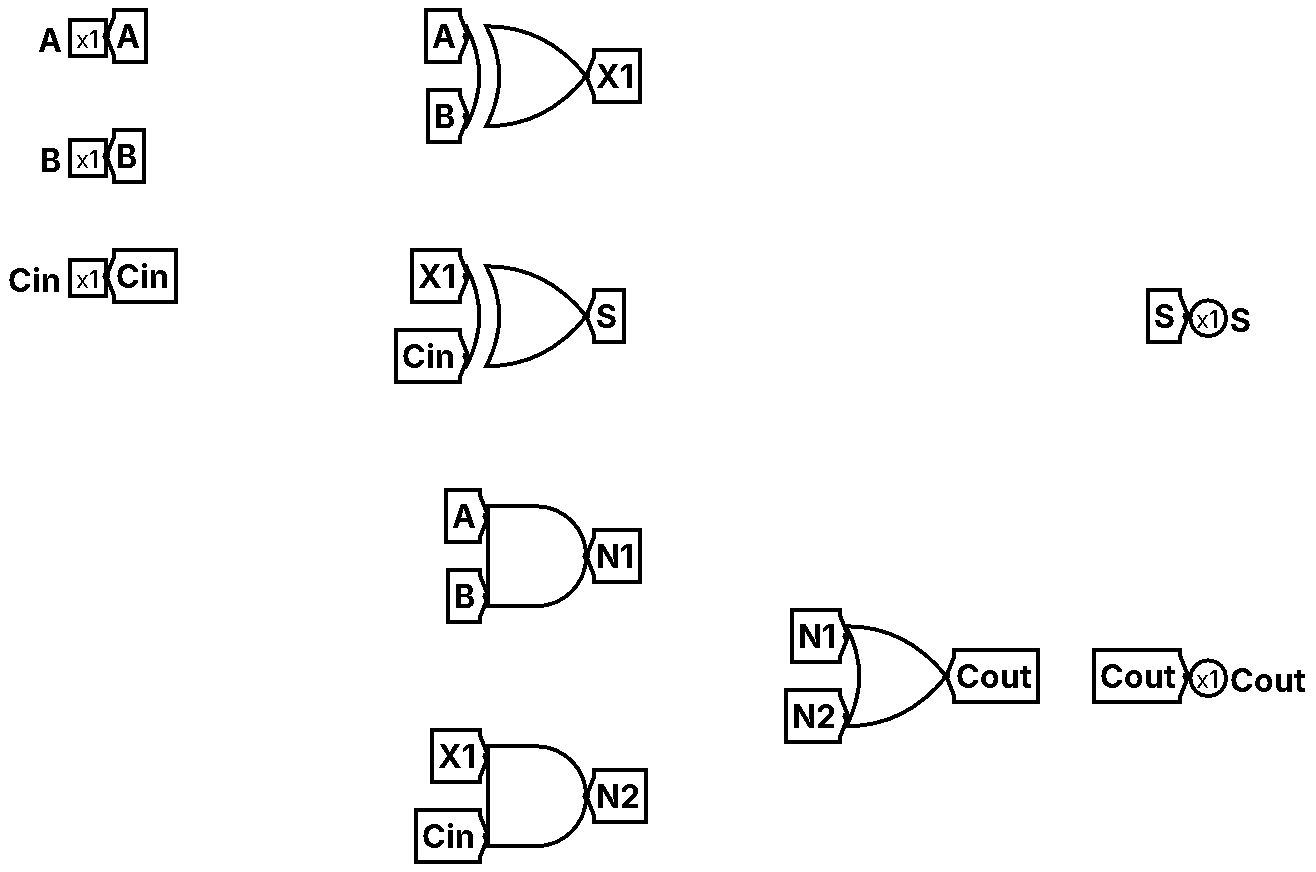
The SVG below is the file Logisim wrote, unmodified.
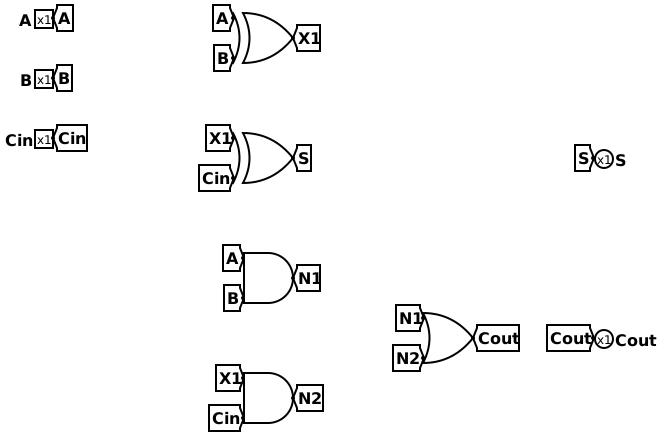
Download full-adder-printer-view.svg and the 200 percent PNG. The circuit is the tutorial full adder.
Printer View or screen view
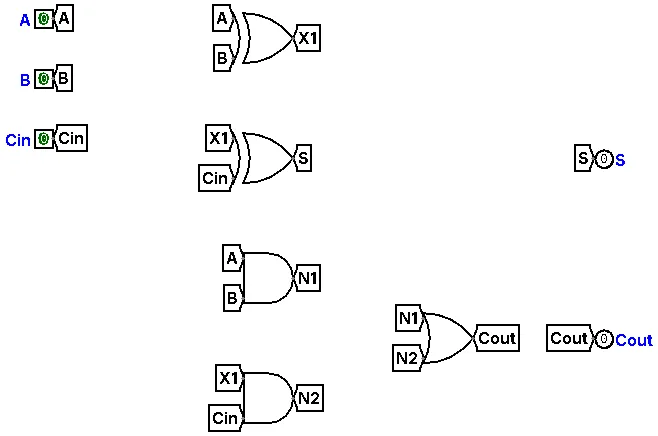
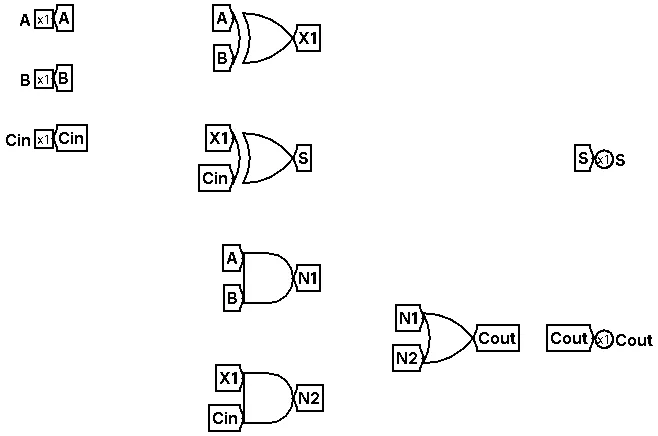
With Printer View on, the PNG had two colours: black on white, labels in black, and each pin showed its bit width (x1) instead of its value. With it off, the PNG had five colours: blue labels and the on-screen pin values (a green 0).
Dark theme and exports
The theme is File, Preferences, Window, Look and feel. Choosing FlatLaf Dark also switched the editor theme to Dark and darkened the canvas at once.
Keep Printer View on for report figures, whatever theme you work in.
Print or save as PDF
File, Print… (Ctrl+P) first opens Print Parameters:
The fields are Circuits, Header (default %n (%p of %P)), Rotate To Fit and Printer View; the last two are ticked by default. Press OK to reach the system print dialog.
Export the timing diagram
The timing diagram has its own export; see the timing diagram page.
Tips for readable report figures
The combinational analysis page covers the table export.
Without installing Logisim
The circuit viewer draws a .circ file in the browser. It is for viewing; the image export in this version is Logisim’s own.
Classic 2.7.1
The classic 2.7.1 Export Image dialog: Circuits, Image Format with PNG, GIF and JPEG, a Scale Factor slider at 100 percent and a ticked Printer View box.
Classic 2.7.1 has the same dialog with three formats: PNG, GIF and JPEG. There is no TikZ or SVG. The scale slider has the same 13 to 800 percent range and Printer View is ticked by default. On the classic version of the full adder (a different file, so a different size) PNG was 611 x 431 px and 8,159 bytes at 100 percent, and 1222 x 862 px and 20,707 bytes at 200 percent; GIF 3,617 and 9,611 bytes; JPEG 19,404 and 50,060 bytes.
See the interface and shortcuts for other menu differences.